ALERT:Fibi experiencing some functionality issues. ORIS is working to solve the problem.
Negotiation and Review tab
How do I add a Review Location to an Agreement record and how
do I add comments on the Negotiation and Review tab?
Adding Review Location
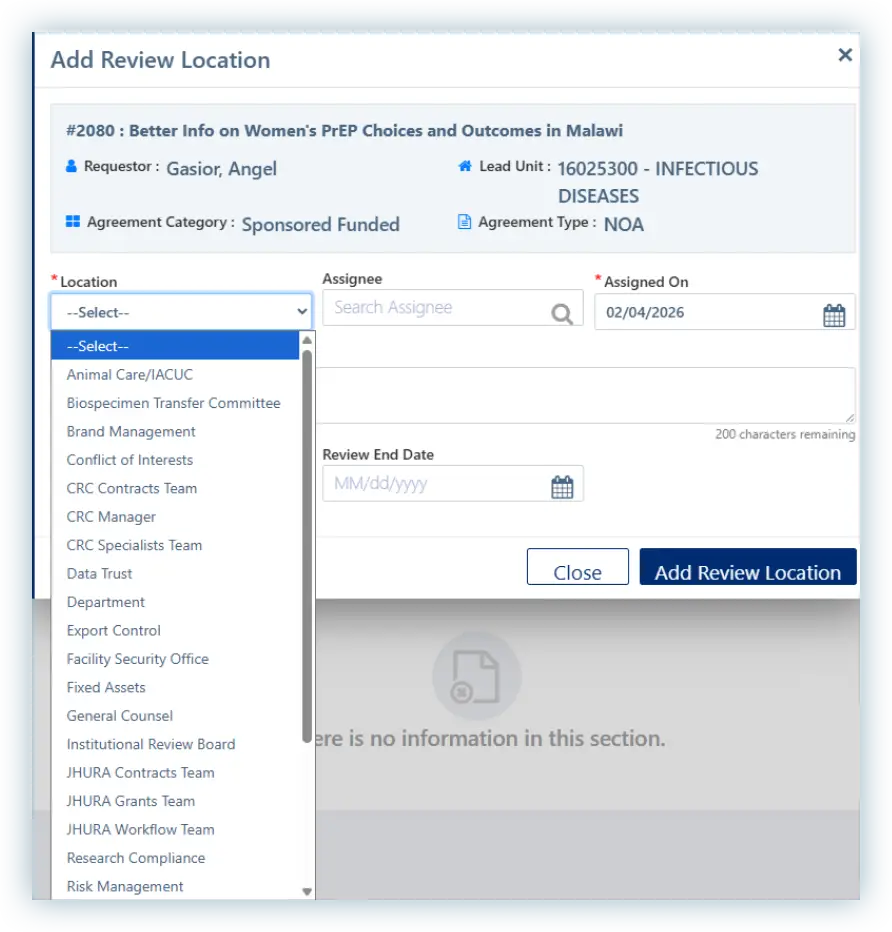
Click on “Add Review Location” button.
Choose the appropriate Location from the dropdown menu.
Enter the Assignee – the individual intended for follow-up actions.
If assigning Export Control Office, General Counsel or any other office external to RASP, input your own name.
If choosing “Department,” under the Description input the department’s unit name and the Assignee as the contact person at the Department. This most likely will be the individual who created the record.
Click on “Add Review Location” button.
Adding Comments/Activity
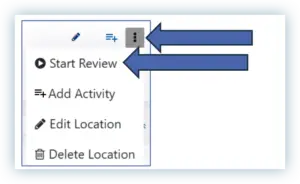
Find the Review Location where you need to add the comment and click on the icon next to the desired location. Note: If the Review Location does not show as In Progress, change the status by clicking on the More Actions icon and “Start Review.
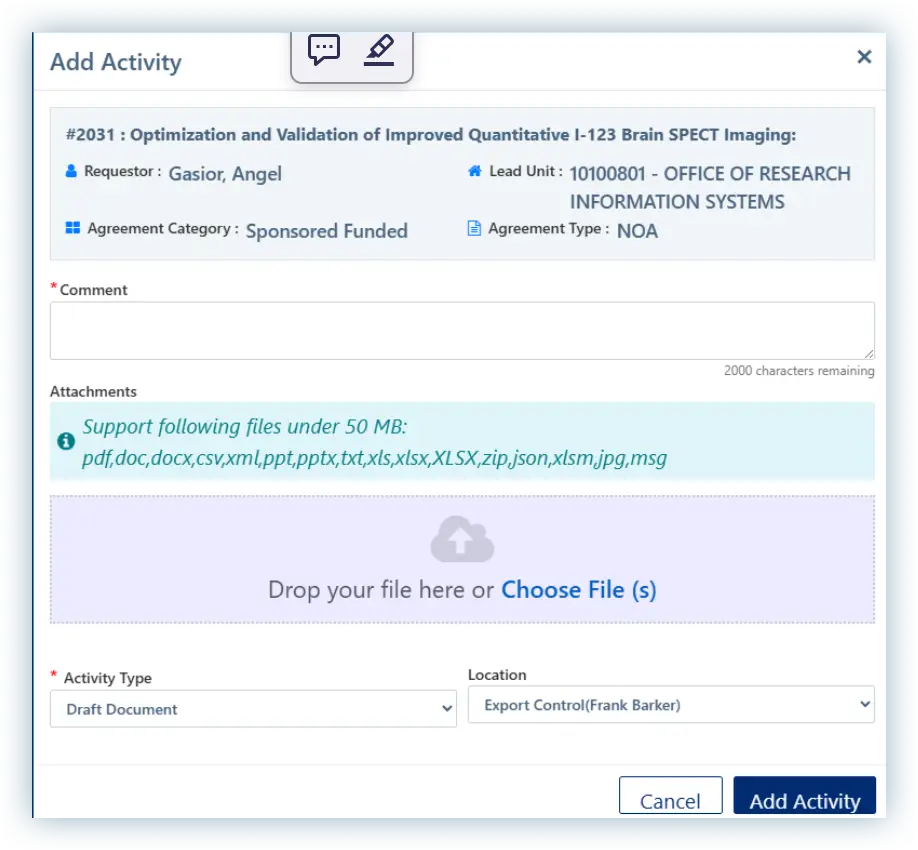
The following box will open:
Enter the comment needed in the “Comment” field. Change the “Activity Type” from the dropdown if necessary.
Other fields may open and need to be completed based on the activity type chosen.
Confirm the “Location” is correct or this can be changed as well.